Motive Logo

Motive Support Process

Procedure

  1. Adding McLeod ID: If the issue involves adding the McLeod ID, it typically takes no less than 30 minutes.
  2. If the driver is not receiving loads:
    • Check if the driver has the most current app version.
    • Ask them to log out and back in.
    • Attempt to send a load to them.
  3. If previous steps didn't work:
    • Contact Motive to ensure McLeod ID is set up correctly.
    • Request Motive to purge any old stuck loads.
  4. User unable to log out:
    • Deleting the app and reinstalling won't work.
    • The driver needs to do a post-trip inspection, then log out, wait a couple of minutes, and log back in.

For further assistance, contact Transport Support: TransportOperationalSupport@cemex.com

New Support Procedure

We now have a dedicated point of contact, Mark Barnes. Reach him at mark.barnes@cemex.com and CC vicki.chou@gomotive.com and apisupport@gomotive.com.

Include as much detail as possible about the issue, including any troubleshooting steps and relevant evidence.

Contacting Motive

First, open a case in Service Now. Then, in the ticket, select the email option from the three-dot icon at the top right.
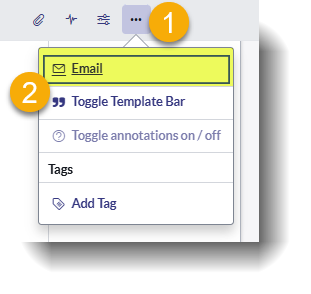
Email Function

Write the email to apisupport@gomotive.com, CC mark.barnes@cemex.com and vicki.chou@gomotive.com.

Motive will generate a ticket number and respond with any additional requests for information.